Anchor Mesh Status
Anchor Mesh Status shows how latency and packet loss between RIPE Atlas anchors change over time, so you can see when a cable cut, power outage or large reroute affects connectivity between countries. It draws a heatmap of added latency for up to 20 anchor-to-anchor corridors. Clicking a cell shows the ping metrics and traceroute changes for that pair and time.
The tool is at atlas.ripe.net/use-cases/anchor-mesh-status.
 Lisbon, Barcelona and Madrid corridors (Manual pairs mode) during the Iberian Peninsula blackout, 27 April – 1 May 2025 (see Examples)
Where the Data Comes From
The tool only reads measurements that RIPE Atlas already runs. Using it doesn't schedule anything new.
Every RIPE Atlas anchor is the target of built-in anchoring mesh measurements. These are ping and traceroute measurements over IPv4 (and IPv6 where the anchor supports it), with the other anchors as sources. They are tagged anchoring and mesh, and their description is Anchoring Mesh Measurement. Since every anchor measures every other anchor continuously, the mesh gives a consistent record of latency between stable, well-connected endpoints.
For a pair A → B, the tool reads the anchoring mesh ping measurement that targets anchor B, filtered to anchor A's probe:
- Latency and packet loss come from the measurement's ping statistics (
/api/v2/measurements/<id>/ping-stats/): the median RTT and the counts of sent and received packets. Depending on the bucket size, these are raw results or hourly or daily roll-ups. - Path changes in the pair diagnostics come from the matching anchoring mesh traceroute measurement.
- Whether an anchor was connected is taken from its current status for recent ranges, and from the probe archive (
/api/v2/probes/archive/) for ranges starting more than 24 hours ago.
Stopped measurements, such as those for a retired anchor, are still used for the time they cover, so older incidents can still be viewed.
You can browse the measurements in the measurement list or fetch them from the API:
https://atlas.ripe.net/api/v2/measurements/?tags=anchoring,mesh&type=ping&sort=-id
Getting Started
The Examples links under the page introduction each load a full view of a real incident (see Examples). To build your own:
- In the Anchor selection panel, choose an IP stack: IPv4, IPv6 or Both
- Choose a Selection mode: Country pairs or Manual pairs
- Add up to 20 pairs
- Click Show heatmap
- Adjust the Time window and Bucket size above the heatmap if needed
After the first build, the button reads Update heatmap. If you change the selection, Filters changed — update to refresh data appears under the range, below the legend, until you click it.
The IP stack is applied when you add a pair. Each pair belongs to one address family, and Both adds an IPv4 and an IPv6 pair. Changing the IP stack afterwards doesn't affect pairs you've already added.
Selecting Anchor Pairs
A corridor is a pair of anchors on one address family, covering traffic in both directions. In Manual pairs mode each chip is one corridor. In Country pairs mode each chip is a pair of countries, which can give several corridors (see Heatmap rows below). Either way, you can add up to 20 chips.
Country Pairs
In Country pairs mode you choose two countries and the tool picks the anchors.
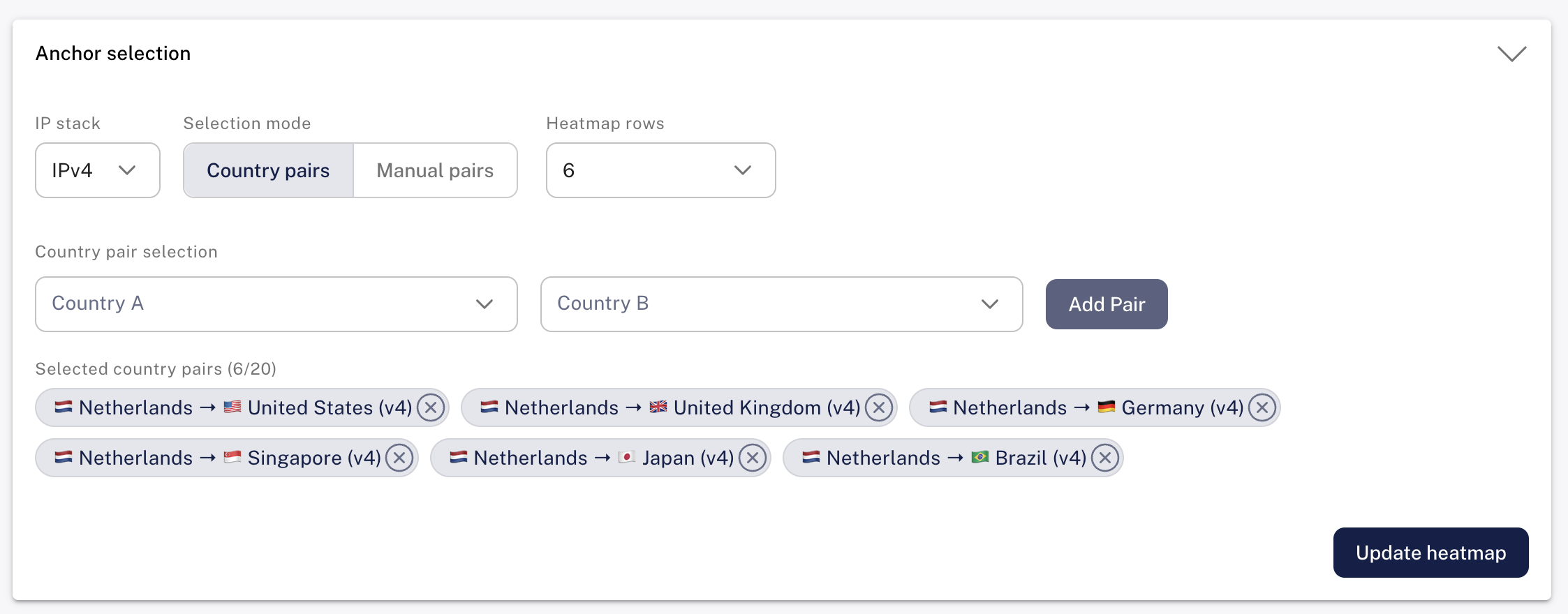 The Anchor selection panel with six IPv4 country pairs from the Netherlands
- Select Country A and Country B. You can search both lists by country name or ISO code, and each country shows its number of anchors.
- Click Add Pair to add a chip, for example
🇱🇹 Lithuania → 🇸🇪 Sweden (v4). - To look at corridors within one country, choose it on both sides. The country needs at least two anchors.
- Heatmap rows (3–20) sets the total number of corridors. Rows are split evenly between country pairs, and adding a chip raises the number if needed.
When the heatmap is built, the tool picks anchors that were connected during the selected time range, favouring long-running anchors with high uptime. The selection is deterministic, so a shared link always gives the same anchors. Corridors are spread over different anchors on each side instead of all starting from one, so a problem with a single anchor doesn't dominate the view.
Hover over a chip to see which anchors it resolved to (city and probe ID) and to highlight its rows in the heatmap.
Manual Pairs
In Manual pairs mode you choose the anchors yourself.
- Select Anchor A and Anchor B. You can search by city, country code or anchor hostname.
- Click Add Pair. The tool checks that an anchoring mesh measurement exists between the two anchors and has data for the selected range. It then adds both directions (A → B and B → A) for each address family with data.
- A notification confirms the pair or says why it couldn't be added, for example because one anchor is IPv4-only or the measurement has no data.
Manual pairs show as chips like Vilnius ↔ Lund (v6). In this mode, removing a row from the heatmap also removes its chip.
TIP
Switching between Country pairs and Manual pairs clears the selection and the heatmap.
Pairs Missing From the Heatmap
A pair that can't be drawn is shown as a greyed-out chip with a ⚠ icon. Hover over it to see why. A note below the chips gives the number of missing pairs, and pairs that resolved but returned no samples are listed in a Left off the heatmap banner above the heatmap. Usually the reason is one of these:
- No anchors were connected in the country during the time range (or only one, for a same-country pair)
- There are no anchoring mesh measurements between the countries for that address family
- One anchor is IPv4-only, so there is no IPv6 corridor
- The measurement has no samples in the selected range
- The Heatmap rows limit is already used up by other pairs. Raise it or remove a pair.
Time Range
Time Window
The Time window toggle has windows ending now (1h, the default, then 6h, 24h, 7d and 30d) and Custom. Choosing a preset redraws the heatmap straight away.
Custom shows From and To fields in UTC and an Apply button. Dates in the future aren't allowed. The current range is always shown under the legend.
Timeline Brush
The timeline brush below the time controls shows the selected range against a longer timeline. You can:
- Drag the highlighted window to move it
- Drag either handle to shorten or lengthen it (one hour minimum)
- Drag across an empty part of the track to select a new range
When you release the brush, the time window switches to Custom and the heatmap is redrawn. The start and end snap to whole buckets.
Bucket Size
Each column of the heatmap is one time bucket. With Auto, the bucket size depends on the length of the range:
| Range length | Auto bucket size | Presets |
|---|---|---|
| up to 1 hour | 5 minutes | 1h → 12 columns |
| up to 2 hours | 10 minutes | |
| up to 6 hours | 15 minutes | 6h → 24 columns |
| up to 24 hours | 1 hour | 24h → 24 columns |
| up to 3 days | 6 hours | |
| up to 10 days | 12 hours | 7d → 14 columns |
| longer | 1 day | 30d → 30 columns |
You can pick a smaller size from the Bucket size menu, down to 5 minutes. Smaller buckets mean more data to load. Sizes that would give more than 150 columns are marked as possibly slow, and sizes over 400 columns are disabled.
The Heatmap
Each row is a corridor, or one direction of a corridor, and each column is a time bucket. A cell's colour shows how much latency was added on that corridor in that bucket. The row label shows the anchors' cities and probe IDs and the row's highest ΔRTT.
How Added Latency Is Calculated
- A bucket's RTT is the average of the median RTTs reported in that bucket. Its packet loss is the percentage of sent packets that weren't received.
- A row's baseline is its lowest bucket RTT in the visible range, which is the best latency the corridor actually reached.
- A cell's ΔRTT is its RTT minus the baseline, in milliseconds.
The heatmap uses milliseconds rather than percentages so rows can be compared. A 5 ms variation on a 5 ms path is +100% but rarely matters, while a 30 ms jump on any path usually means traffic has been rerouted.
WARNING
The baseline only takes the visible range into account. If the whole range falls within an incident, the raised latency becomes the baseline and the heatmap looks normal. Include some time before the event. This is why the examples start a day early.
Colour Scale
| ΔRTT | Colour | Severity |
|---|---|---|
| < +5 ms | Dark green | Normal |
| +5 – 15 ms | Light green | Minor |
| +15 – 30 ms | Amber | Moderate |
| +30 – 50 ms | Orange | Elevated |
| ≥ +50 ms | Red | Critical |
Special Cells
| Cell | Meaning |
|---|---|
| Grey | No data (offline): no ping samples were recorded in the bucket, usually because one of the anchors was offline |
| Red with ⚠ | 100% loss: packets were sent but none came back, usually because the target anchor was offline. The cell is red whatever the row's ΔRTT |
| Faded, with ⚠ | More than 20% packet loss in the bucket. The cell keeps its ΔRTT colour but is faded |
| White with red border and ⚡ | Faster-Than-Light warning: the RTT is lower than is physically possible for the distance between the anchors, which usually means an anchor's location is wrong. These buckets are never used as the baseline |
| Pale grey | No baseline: ΔRTT couldn't be calculated for the row because every RTT in the range was flagged as impossible (⚡) |
When a corridor's cells turn grey or red with ⚠ partway through the range, the corridor has gone dark. Often a bucket or two of faded ⚠ cells comes first as loss rises. Several rows going dark at the same time usually points to a power or site outage. Rows that change colour and stay that way usually point to a reroute.
Hover over a cell to see its time, ΔRTT, current RTT, baseline RTT and packet loss. Click a cell to open the pair diagnostics for that bucket, or click a column header to zoom in to that bucket.
Display Options
- Merge directions is on by default. It combines the two directions of a corridor into a single ↔ row, using the lower of the two RTTs for each bucket. This gives the best-case latency of the link and halves the number of rows.
- Latency line draws each row's RTT as a line across its cells. The line is scaled to the row's own minimum and maximum, so it shows how latency changed rather than how high it was. Gaps are buckets without samples.
- Sort rows has four options:
- By signal similarity (default) puts rows whose latency changes look alike next to each other, so corridors hit by the same event appear together
- Selection order keeps the order the pairs were added in
- Most disrupted first lists rows that went dark first, then the rest by highest ΔRTT
- Alphabetical
- Filter by severity (Country pairs mode only) shows only rows whose highest ΔRTT is at least +15 ms (moderate), +30 ms (elevated) or +50 ms (critical).
- In Country pairs mode, click a row's × to hide it. The number of hidden rows and a Show all link appear next to Sort rows. In Manual pairs mode, × removes the pair and its chip from the selection instead, so nothing is counted as hidden.
Summary Strip
The strip above the heatmap shows:
- corridors examined: how many corridors are in the heatmap
- avg peak ΔRTT: the average of each row's highest ΔRTT
- worst: the row with the highest ΔRTT
- latency inflated: the number of rows that reached +15 ms or more
- disrupted: the number of rows that went dark or had more than 20% loss in at least one bucket
- If any cells have no baseline, a note giving how many
The ΔRTT figures only use buckets with replies. A bucket where every packet was lost has no latency to measure, so an outage shows up under disrupted rather than latency inflated or worst.
Pair Diagnostics
Click a heatmap cell to open the diagnostics panel for that pair and bucket. For a merged row, the panel shows the direction with the lower RTT in that bucket. Use Reverse to see the other direction.
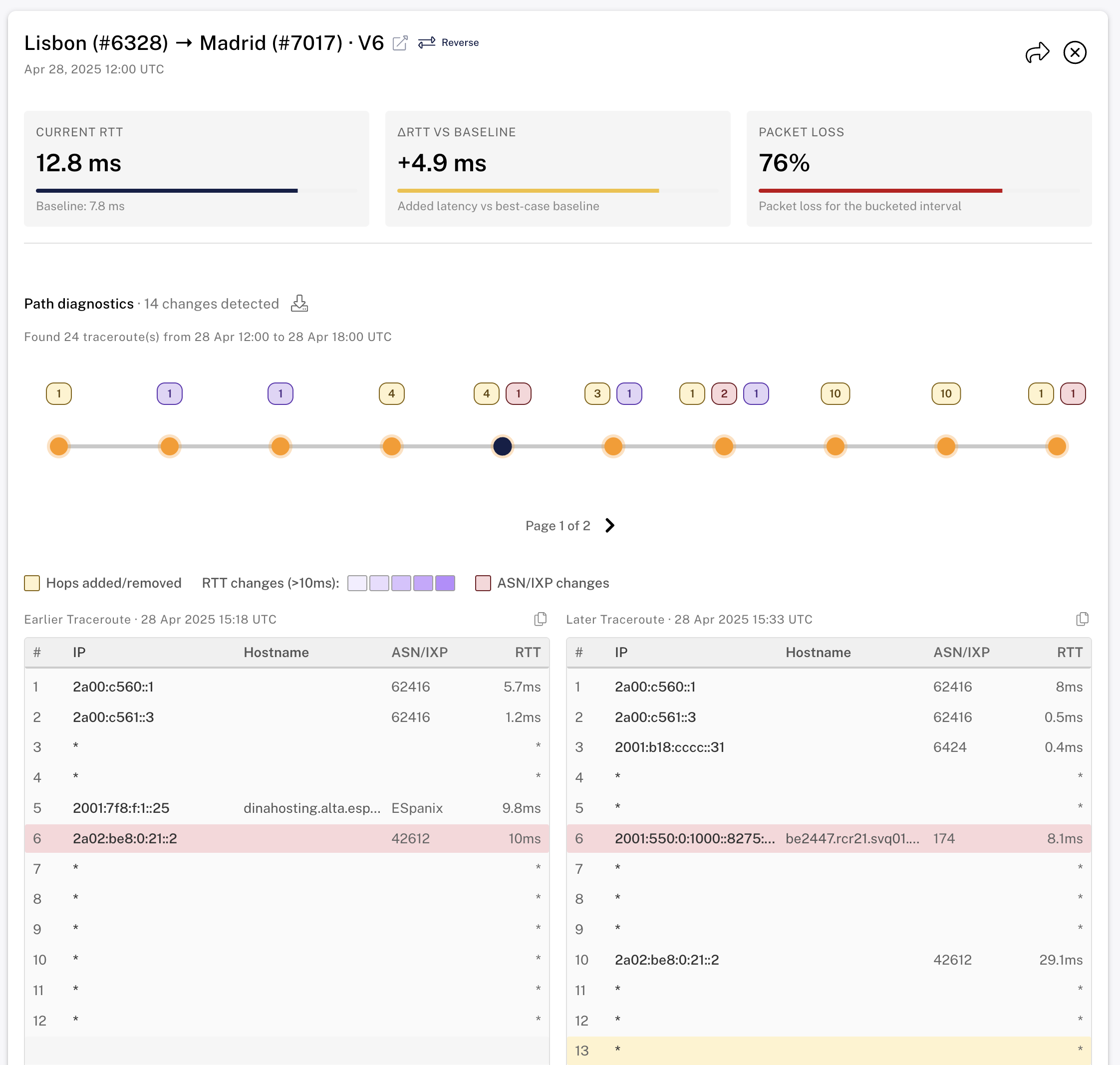 Pair diagnostics for Lisbon → Madrid (IPv6) as the blackout starts, with hop 6 moving from AS42612 to AS174
Metrics
- Current RTT: the bucket's RTT, with the row's baseline below it
- ΔRTT vs baseline: the latency added compared with the baseline
- Packet loss: the bucket's packet loss
If the bucket has a Faster-Than-Light warning, a banner shows the distance between the anchors and the minimum RTT possible over that distance.
Path Diagnostics
The panel loads traceroutes for the pair from the anchoring mesh traceroute measurement and compares each one with the one before. They cover the selected bucket, and at least an hour either side of its midpoint. These count as changes:
- ASN/IXP change: a hop moves to a different network or exchange
- RTT change: a hop's RTT changes by more than 10 ms and by more than 20%
- Hops added/removed: the path gets longer or shorter
A different IP address in the same network doesn't count as a change.
A slider lists the changes ten per page, with a coloured badge for each type. Hover over a step to see what changed. Selecting a step shows the Earlier and Later traceroutes side by side, with hop number, IP, hostname, ASN/IXP and RTT, and the changed hops highlighted. You can copy either table to the clipboard. If nothing changed, the first and last traceroutes in the period are shown.
Sharing and Downloading
- The external link icon opens the traceroute measurement's own page.
- Share this analysis copies a link to the same pair and time window in the standalone path analysis view.
- The download menu saves the traceroutes as JSON, either all traces or changes only, with the IP, hostname, ASN, IXP and RTT of every hop.
Sharing a View
The page URL updates as you work, so you can copy it from the address bar whenever you like. A shared URL rebuilds the same heatmap when opened, and reopens the diagnostics if a cell was selected.
| Parameter | Meaning |
|---|---|
selectionMode | countries or manual |
ipVersion | v4, v6 or both |
countryPairs | Comma-separated country pairs, e.g. LT-SE-v4,LT-SE-v6 |
manualPairs | Comma-separated manual pairs in the form <anchor A id>-<anchor B id>-<4 or 6>, one per direction |
pairCount | Heatmap rows (3–20) |
timeWindow | 1h, 6h, 24h, 7d, 30d or custom |
startTime, endTime | Start and end of a custom range in milliseconds since the Unix epoch, used with timeWindow=custom |
bucketMs | Bucket size in milliseconds if not Auto, e.g. 21600000 for 6 hours |
merge | Merge directions: 1 (default) or 0 |
highlightPair, highlightBucket, highlightIp, selectedIndex | The selected cell and traceroute change, used to reopen the diagnostics |
preset | location builds corridors from your own country (see Examples) |
Sort order, the severity filter, the latency line and hidden rows aren't saved in the URL.
Examples
The Examples links on the page load these views.
Corridors from your location works out which country you're in and builds a live IPv4 heatmap of corridors from there to up to six of the main anchor countries: US, GB, DE, NL, SG, JP, BR, ZA and AU (not counting your own). If your country has no anchors, it uses the Netherlands, then Germany, the United Kingdom or the United States.
Baltic Sea cable cut (Nov 2024): the BCS East-West submarine cable was cut around 08:00 UTC on 17 November 2024. All Lithuania ↔ Sweden anchor corridors (Vilnius/Šiauliai ↔ Linköping/Lund) go from about 17 ms to about 37 ms on IPv4 and IPv6 as traffic is rerouted. Latency stays high for about eleven days and drops back to the baseline after the cable is repaired on 28 November.
Iberian Peninsula blackout (Apr 2025): the Spanish and Portuguese power grids failed around 10:33 UTC on 28 April 2025. Anchors ran on backup power for a few hours and started going offline from around 15:00 UTC. The Madrid anchors go dark: corridors to and from them first show heavy packet loss (faded ⚠ cells), then 100% loss (red ⚠ cells) until power comes back on 29 April. Anchors at sites with generators stay online but are rerouted, and Barcelona ↔ Lisbon goes from a steady ~29 ms to a peak of ~50 ms overnight. This heatmap shows outages (red ⚠ cells) and reroutes (latency jumps) side by side.
Tips
Checking whether an incident affected connectivity. Add the countries involved as country pairs, for example both ends of a suspected cable cut, and choose a time window that starts before the event. Sort by Most disrupted first or filter by severity to bring the affected corridors to the top. Several corridors jumping in latency at the same time suggests a reroute. Rows going dark together suggest an outage.
Investigating a reroute. Click the first bucket where a corridor's latency jumps and look for ASN/IXP changes around that time in Path Diagnostics. The Earlier and Later traceroutes show where the path changed. Internet paths are often asymmetric, so use Reverse to see whether the other direction changed too.
Telling an anchor outage from a network problem. When an anchor goes offline, its corridors go dark: grey if no samples were recorded, or red with ⚠ if packets were sent but none came back. If every row with a particular anchor goes dark while the others stay green, the problem is probably that anchor or its site, not the network between the countries. Add manual pairs to other anchors to check.
Comparing IPv4 and IPv6. Set IP stack to Both before adding pairs, so each corridor gets an IPv4 row and an IPv6 row. If the two are affected at different times, or only one is affected, they may be routed or peered differently.