Ambassador Probe Management
If you are a RIPE Atlas ambassador, you can keep track of the probes you hand out using the Ambassador Probe Management card on your RIPE Atlas dashboard. Use it to record who you gave each probe to, see whether the probe is online, keep private notes, and contact the hosts.
Finding the card
Log in and go to the dashboard. The Ambassador Probe Management card only appears if your account is registered as an ambassador.
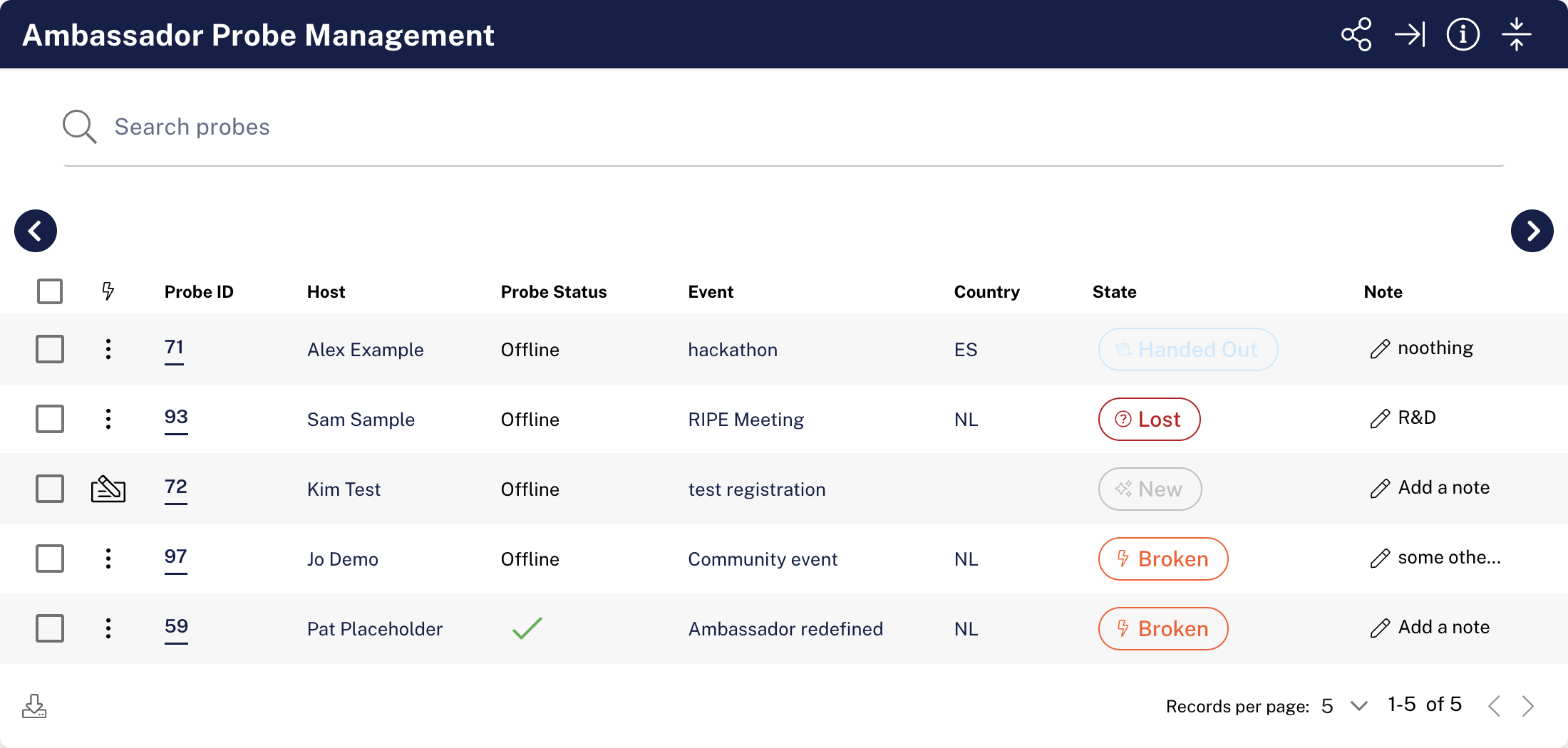
The card lists every probe assigned to you, with these columns:
| Column | What it shows |
|---|---|
| Probe ID | The probe's ID. Click it to open the probe's page. |
| Host | The name of the person you gave the probe to. |
| Probe Status | A check mark if the probe is connected, Offline if it is disconnected, abandoned or written off, and Never if it has never connected. |
| Event | The event at which you handed out the probe, if any. |
| Country | The probe's country. |
| State | Where the probe is in its life cycle: New, Handed Out, Applied, Refurbished, Lost, Broken or Returned. |
| Note | Your own note about the probe. |
Use Search probes at the top of the card to filter the list, and click a column heading to sort by it.
Handing a probe to a host
Probes you haven't handed out yet have the state New. To record who you gave one to:
- Click the Assign this probe icon at the start of the probe's row.
- In Assign a new RIPE Atlas Probe host, enter the host's First Name, Last Name and E-Mail Address. All three are required.
- Click Submit.
The probe's state changes to Handed Out. The host still needs to register the probe and plug it in. See Become a Probe Host.
Editing host details
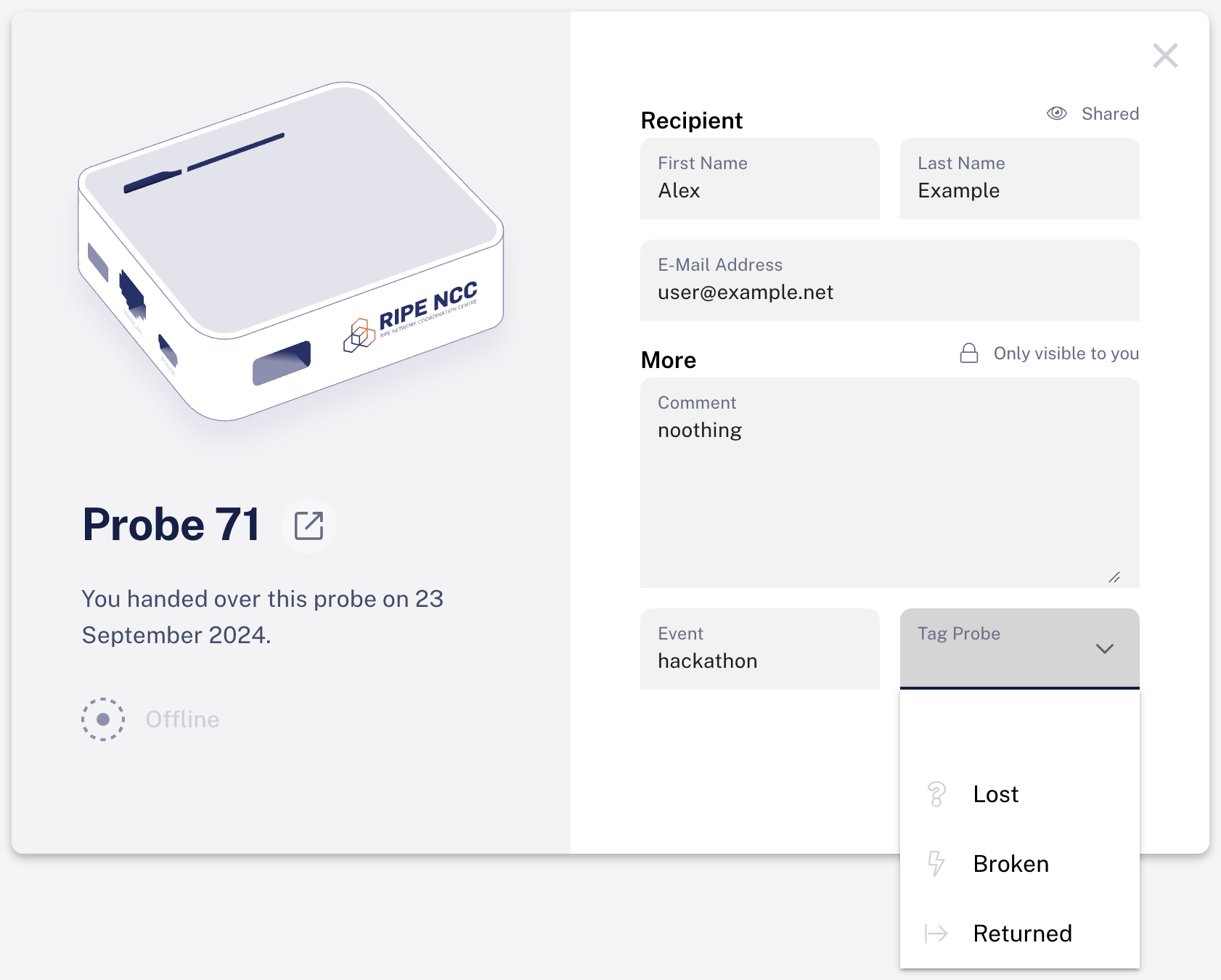
For any probe that isn't New, click the three-dot menu at the start of its row and choose Edit. The dialog shows:
- the probe ID, with a link button to the probe's page
- when you handed over the probe
- whether the probe is Online, Offline or Not connected yet
You can change:
- Recipient (marked Shared): the host's First Name, Last Name and E-Mail Address. You can't change these once the probe is marked Refurbished, Lost, Broken or Returned.
- More (marked Only visible to you): a Comment (the same text as the Note column) and the Event at which you handed out the probe.
Click Save to save your changes. If you close the dialog with unsaved changes, you're asked to confirm.
Marking a probe as Lost, Broken or Returned
In the Edit dialog, use Tag Probe to mark a probe as Lost, Broken or Returned, then click Save. You can only do this while the probe is not connected.
WARNING
Broken and Returned are irreversible and inform the probe host about the status change. You're asked to confirm before these are saved, so use them carefully. Lost doesn't need confirmation.
Contacting hosts
To email a single host, click the three-dot menu at the start of the probe's row and choose Contact. This opens a new message to the host in your email program. The option only appears if you entered an email address for the host.
If your account can send messages from RIPE Atlas, the card also has a checkbox at the start of each row:
- Select the probes whose hosts you want to contact.
- Click Send Message to Selected at the bottom of the list. Hosts without an email address are left out.
- Optionally, choose a message template under Template. This fills in the Subject.
- Enter or edit the Subject and write your Message. HTML tags aren't allowed.
- Click Send.
The message is sent to each selected host, with your email address as the reply address.
Notes
To add or change a note, click the pencil icon in the probe's Note column, type your note and click Save (or Cancel). Notes are only visible to you. HTML tags aren't allowed.
Downloading the list and sharing the card
- Download as CSV: click the download icon at the bottom of the card to download the list as a CSV file. The file includes every probe that matches your current search, across all pages.
- Copy Share Link to this Card: click the share icon in the card's header to copy a link that opens your dashboard at this card.
Following up on hosts
If a probe you handed out is not connected, see the ambassador sections of Troubleshooting Probe Status Issues for what to tell the host.