Member Overview
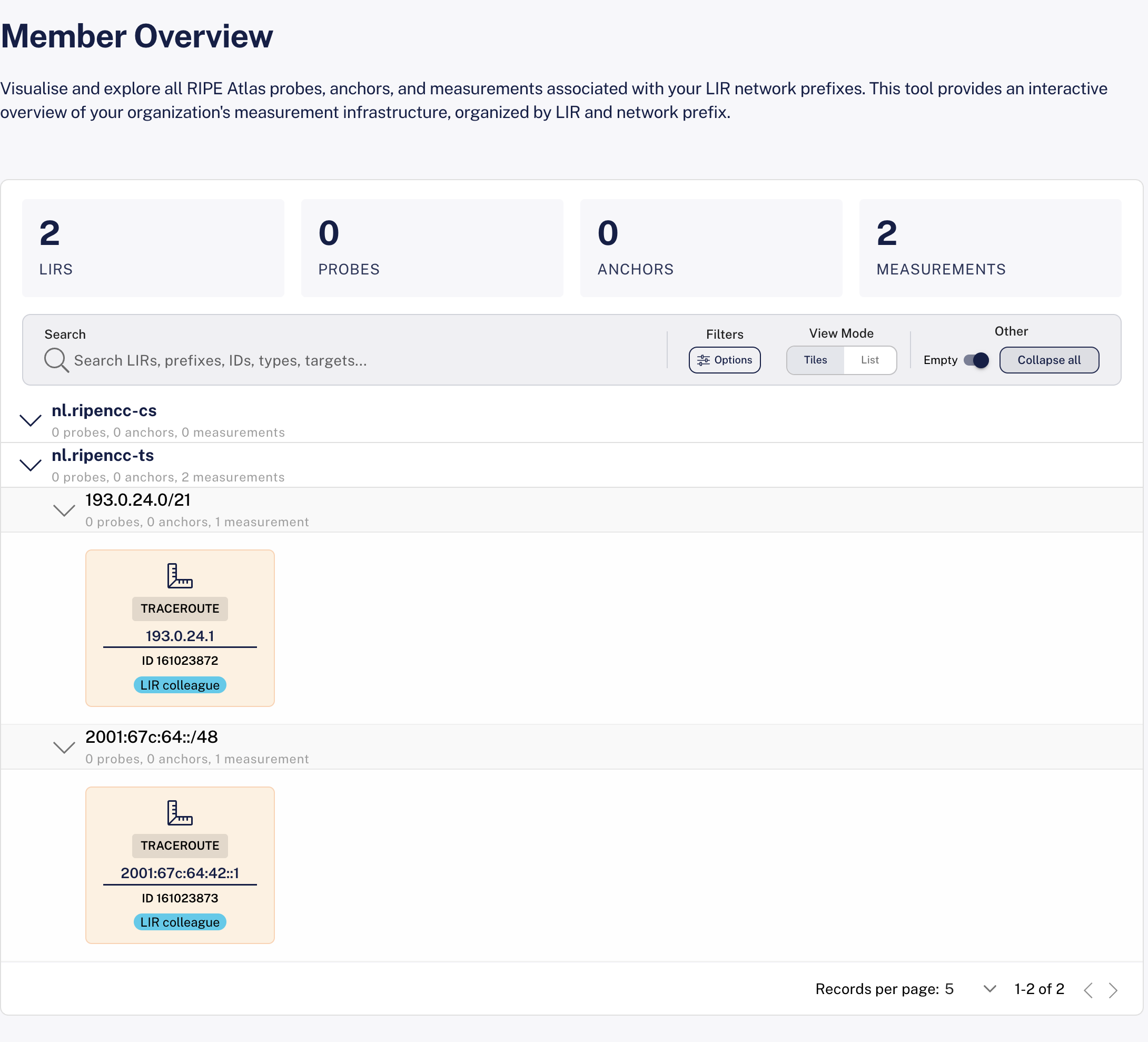
Member Overview lists the RIPE Atlas probes, anchors and measurements that are associated with your LIR's network prefixes. It shows the probes and anchors hosted in your address space and the measurements that target it, whoever owns them. You can use it to see how well your networks are covered by RIPE Atlas and who is measuring them.
The tool is at atlas.ripe.net/use-cases/member-overview (Member Overview in the Use Cases menu). The old address, /use-cases/member-resources/, redirects there.
Who Can Use It
Member Overview is available to RIPE NCC members:
- If you are not logged in, the page asks you to log in.
- If you are logged in but no LIR membership is found for your account, the page says No LIR membership found. If you are a member, make sure your RIPE NCC Access account is linked to your LIR.
How Resources Are Grouped
Resources are organised in three levels:
- LIR: each LIR you belong to, shown by its registration ID, with a count of its resources
- Prefix: each of the LIR's network prefixes, with a count of the resources in it. Click a prefix to expand or collapse it.
- Resources in the prefix:
- Probes hosted in the prefix
- Anchors hosted in the prefix
- Measurements targeting the prefix
Each resource shows who owns it: You, an LIR colleague or an Other user. Anchoring measurements are marked Anchoring. Click a probe, anchor or measurement to open its page in a new tab.
Filtering
The toolbar has:
- Search: filter by LIR, prefix, ID, type or target
- Source: show items owned by you (Mine), by your LIR colleagues (Colleagues) or by other users (Others)
- Types: show Probes, Anchors and Measurements
- Empty: also show LIRs with no probes, anchors or measurements
- Expand all / Collapse all: open or close every prefix (Tiles and List views)
All filters are on by default. When the toolbar is too narrow, the source and type filters move into an Options menu under Filters.
Views
Choose a View Mode:
| View | What it shows |
|---|---|
| Tiles (default) | Each prefix's resources as tiles |
| List | Each prefix's resources as rows |
| Bubble | A zoomable bubble chart, with LIRs containing prefixes and prefixes containing resources, coloured by owner. Scroll to zoom, drag to pan, and click a resource to open it. The Zoom in, Zoom out and Toggle fullscreen buttons appear next to the view selector. |
The Bubble view is only offered when there are at least 50 resources. In the Tiles and List views, LIRs are paged: choose 5, 10, 25, 50 or 100 per page at the bottom.
Sharing a View
The page URL updates as you change settings, so you can copy it from the address bar. Only settings that differ from the defaults are included:
| Parameter | Meaning |
|---|---|
mine, colleagues, others | false to hide items owned by you, your colleagues or other users |
probes, anchors, measurements | false to hide that type of resource |
empty | false to hide LIRs with no resources |
search | The search text |
view | list or zoom (Bubble). Tiles is the default. |
fullscreen | true to open the Bubble view in fullscreen |
Dashboard Card
Members also get a Member Overview card on their dashboard by default. It shows the same list, filters and views as the page, but its settings aren't kept in the URL.