Quick Measurements
Quick measurements let you check how the RIPE Atlas network sees a target in a few clicks. You enter a target, pick ping or traceroute, and the results appear live as the probes report back. There are three places to start one:
- the QuickLook card on your dashboard
- the Reachability Testing use case, which shows results on a world map
- the Multipath Visualisation use case, which shows results as an interactive Khipu network graph
All three create the same kind of measurement, so the inputs and costs are the same.
How Quick Measurements Relate to User-defined Measurements
A quick measurement is an ordinary one-off user-defined measurement with fixed settings. It runs once, from up to 100 probes, and is listed with your other measurements. Each one has its own measurement page with the full results, and for traceroutes you can open it in Khipu from there.
Quick measurements are meant for ad-hoc, interactive checks. If you need more control (protocols, packet options, a specific probe selection, recurring measurements or other measurement types), create a user-defined measurement with the measurement form or the API instead.
Who Can Use Them
You need to be logged in. If you are not, the use case pages show a Login to use QuickLook or Login to use QuickKhipu button instead of the form. The dashboard card is only shown on your own dashboard after you log in.
Cost
| Measurement | RIPE NCC members | Other users |
|---|---|---|
| Ping (100 probes) | Free | 600 credits |
| Traceroute (100 probes) | Free | 6,000 credits |
The cost is shown under the form. Members see Free for RIPE NCC Members instead.
If your credit balance is too low, a warning shows the cost and your balance, and you can't create the measurement. If your account has never had any credits, the warning also offers a Claim 50,000 free credits button, which adds the one-time starter grant to your balance straight away. See Credits for how the grant works and how to earn more credits.
Inputs
The form is the same in all three places:
- Target: an IP address or a domain name.
- IPv4 / IPv6: the address family. It defaults to the IP version set in your preferences.
- Ping / Traceroute: the measurement type. The dashboard card and Reachability Testing start with ping, Multipath Visualisation with traceroute.
- Local / World-wide:
- World-wide (default) uses 100 randomly chosen probes from across the RIPE Atlas network.
- Local uses connected probes near your approximate location. It looks within 500 km first and widens the search to 1,000 km and then 1,500 km if there are too few (fewer than 45 probes for ping, or 10 for traceroute). If there still aren't enough, you are asked to use World-wide instead. On the dashboard card, a local measurement goes ahead with whatever probes were found within 1,500 km, and you only see the warning if there are none at all.
Then click Create QuickLook (dashboard card) or Create (use case pages).
QuickLook Dashboard Card
The QuickLook Measurement card on your dashboard is the quickest way to run a check without leaving the dashboard.
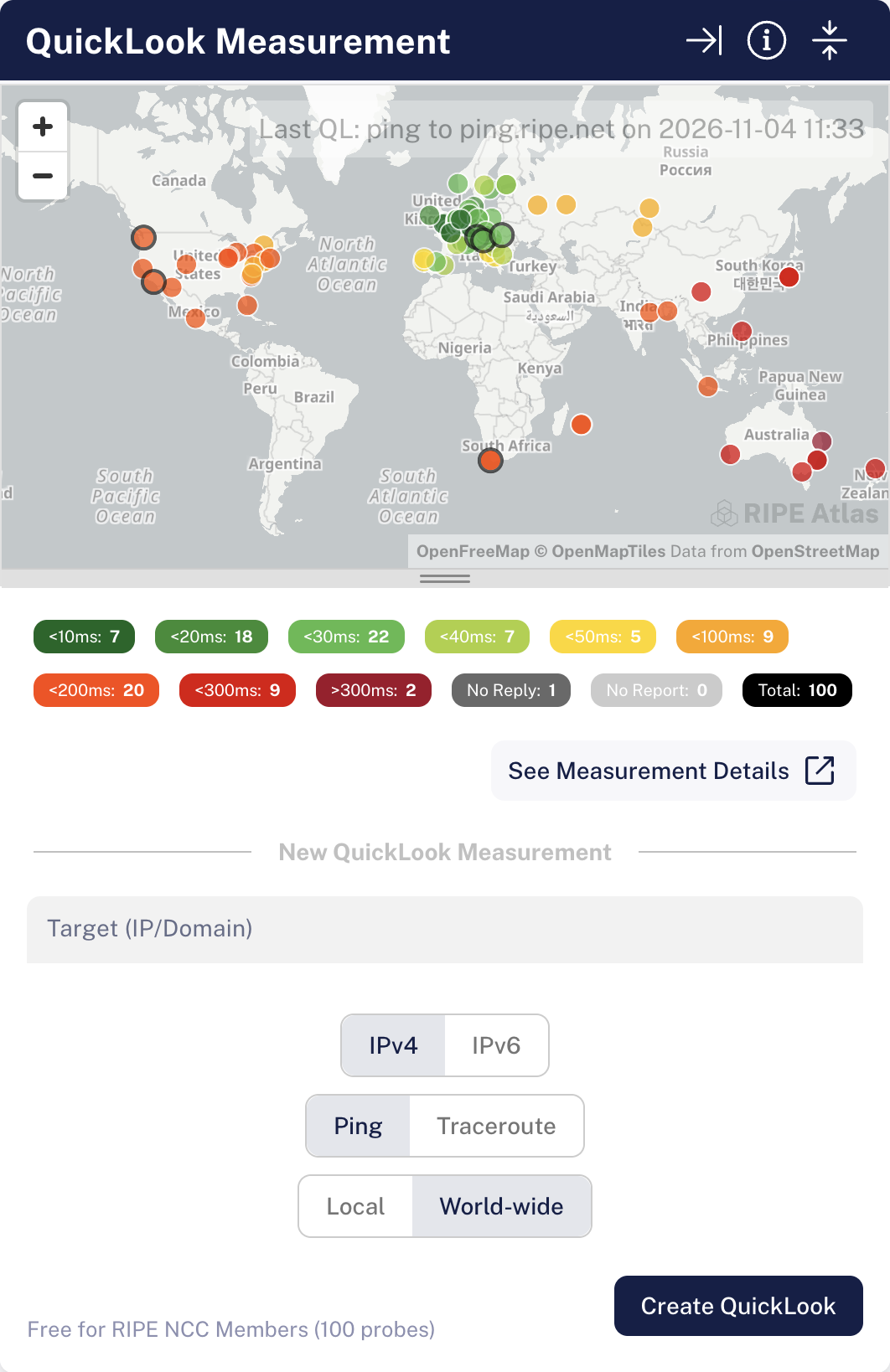
- Before you start, the card shows the results of your most recent quick measurement on its map, with a line such as "Last QL: ping to example.com on ...". If you have never run one, it explains what QuickLook does and invites you to try the form.
- Fill in the form under New QuickLook Measurement and click Create QuickLook.
- The results appear on the map as the probes report back. Each probe is coloured by its minimum RTT (<10ms up to >300ms, plus No Reply and No Report). The chips under the map show how many probes fall into each band and in Total. Click a chip to show only that band, then click other chips to add them back. Clicking Total shows or hides all bands.
- Hover over a probe to see its ID, minimum RTT, hop count (traceroute), whether the target responded, and its status. Click a probe to pin its popup.
- See Measurement Details opens the measurement page in a new tab. New QuickLook clears the map and brings back the form.
Reachability Testing
Reachability Testing (/use-cases/reachability-testing/, also known as QuickLook) shows how reachable a host is from many vantage points around the world. Results are drawn on an interactive world map, so regional connectivity problems and geographic performance patterns stand out.
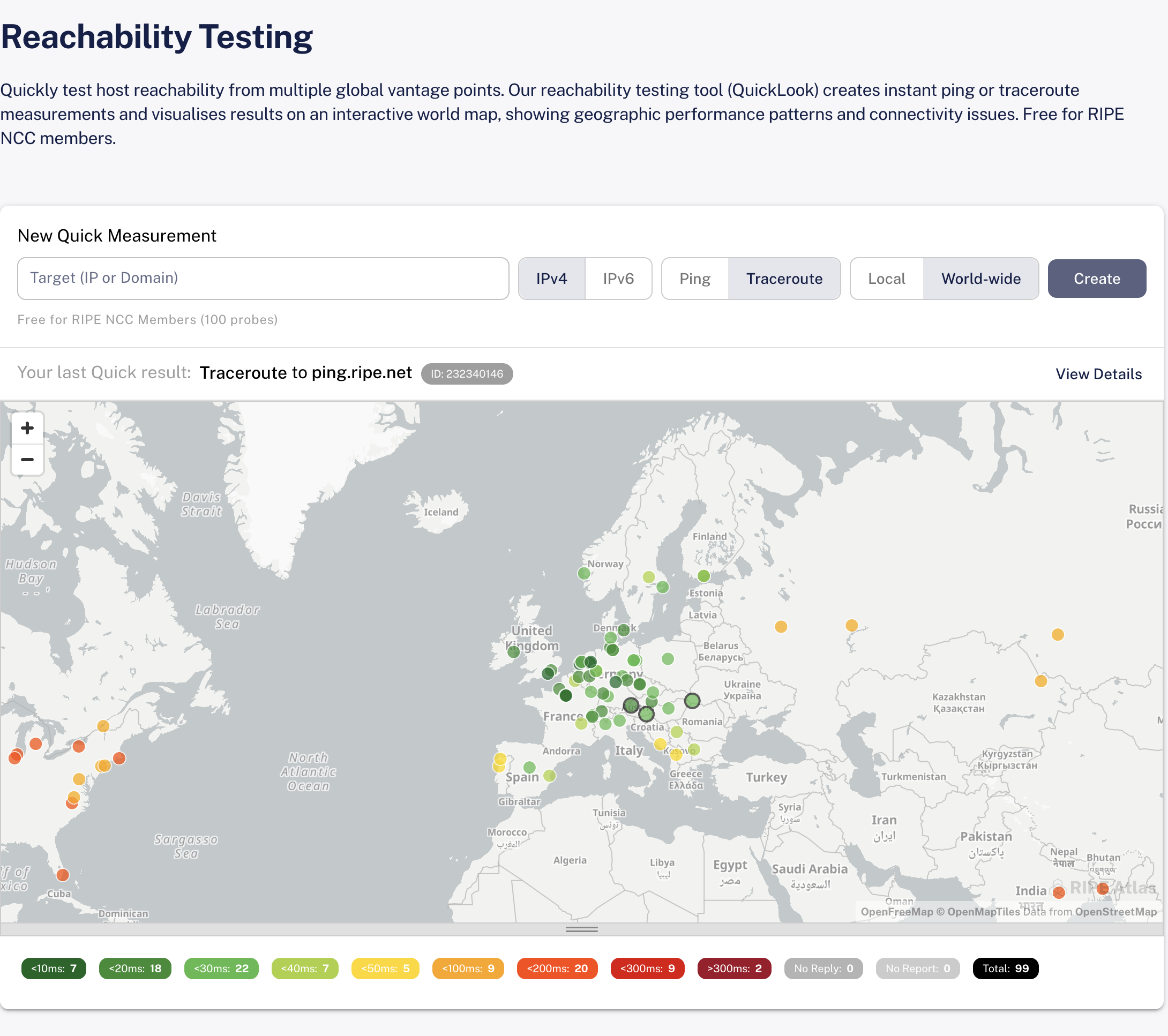
- Fill in the form under New Quick Measurement and click Create.
- While results arrive, a status bar shows the measurement type, the target, the measurement ID and Receiving results: received/expected.
- Probes are coloured by minimum RTT, and the chips under the map filter the RTT bands, as on the dashboard card.
- Hover over a probe to see its probe or anchor ID, source IP and minimum RTT, and whether the target responded. For traceroutes, the popup also shows the complete traceroute. Click a probe to pin its popup.
- View Details opens the measurement page in a new tab, and New Measurement brings back the form.
Multipath Visualisation
Multipath Visualisation (/use-cases/multipath-visualisation/, also known as QuickKhipu) shows the paths from the probes to your target as an interactive Khipu network graph. This shows the routing topology, where paths converge, IXPs and AS relationships.
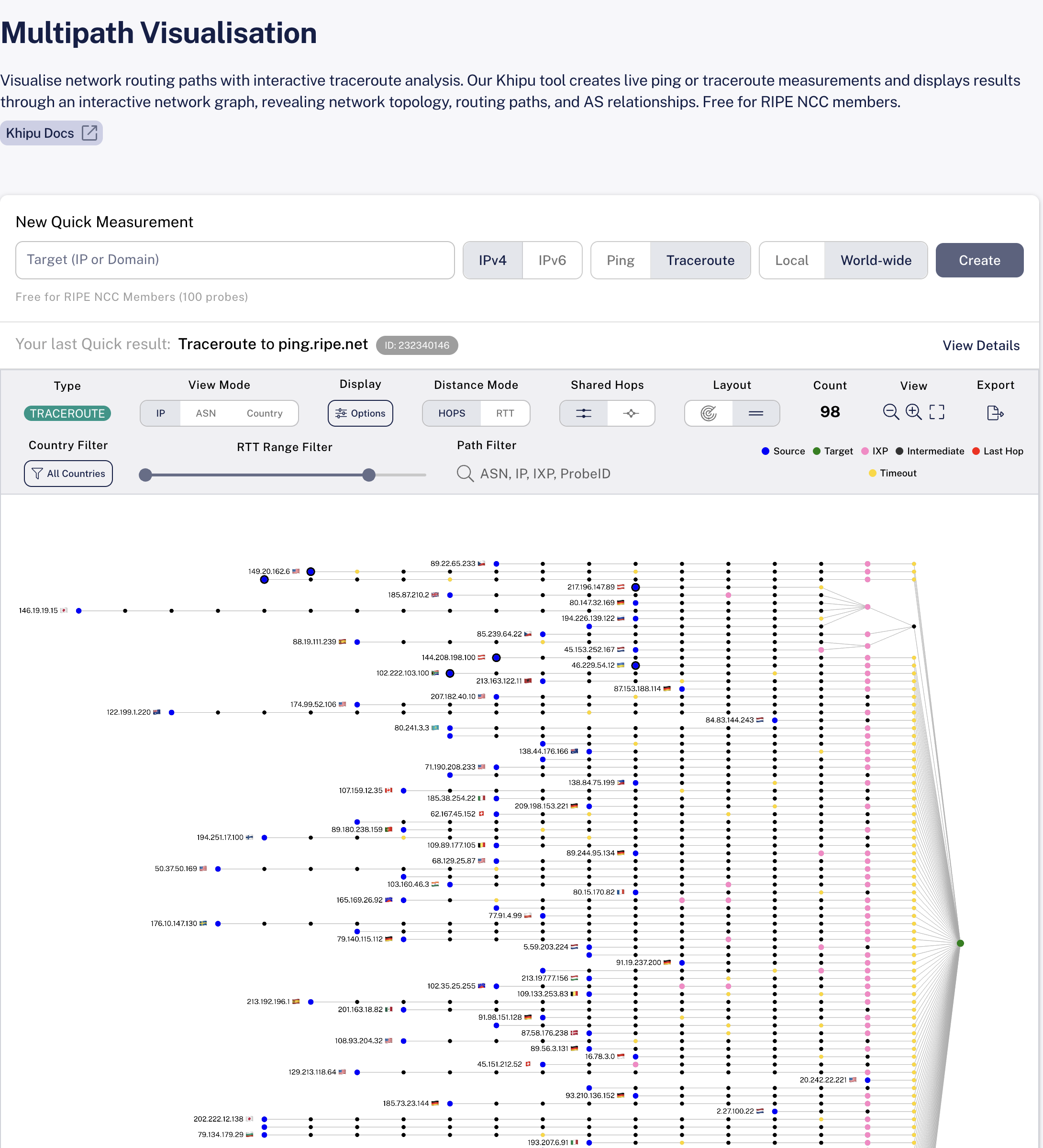
- Fill in the form and click Create.
- As results arrive, the status bar shows Receiving results: received/expected and the graph updates.
- Traceroutes are drawn as paths from each probe to the target. Pings are drawn as probes around the target, coloured by RTT.
- The graph has the Khipu toolbar: view modes (IP, ASN, Country), display options, filters, layout, zoom, fullscreen and export. See the Khipu documentation for details. The time lapse is not available, because quick measurements are one-off measurements.
- View Details opens the measurement page in a new tab, and New Measurement brings back the form.
Reopening Your Last Measurement
When you open Reachability Testing or Multipath Visualisation, your most recent quick measurement loads automatically, whichever of the three places you created it in. The page shows it under Your last Quick result, with its type, target and ID. Click the ID or View Details to open its measurement page. The form stays above it, ready for a new measurement.
To reopen a specific quick measurement, add its ID to the page URL, for example https://atlas.ripe.net/use-cases/reachability-testing/12345678 or https://atlas.ripe.net/use-cases/multipath-visualisation/12345678.
TIP
Older links to /use-cases/quicklook/ and /use-cases/quickkhipu/ still work. They redirect to Reachability Testing and Multipath Visualisation.
If No Results Appear
- Waiting for first results... with Expecting N probes: the measurement has been created and the probes haven't reported yet.
- No results received: the live stream ended without results. Try reloading the page.
- No results: the measurement finished without any results.
- Results aren't available right now: the measurement has results, but they couldn't be fetched. Click Try again.